
Tropical Sno + Square Account Creation Instructions
Account sign-up instructions & next steps
Account Creation
- Visit Tropical Sno’s landing page and click “Let’s Get Started”
- Fill out the form and submit
- You will be automatically redirected to create a Square account. Follow the prompts all the way to the end.
*Please be sure to use the same email address you used in step 2. If you already have a
Square account, you can skip this step
Account Configuration
- To finish the account verification, on your Square Dashboard please select “activate your account”. If you don’t see this option, your account is already activated. Skip to step 6.
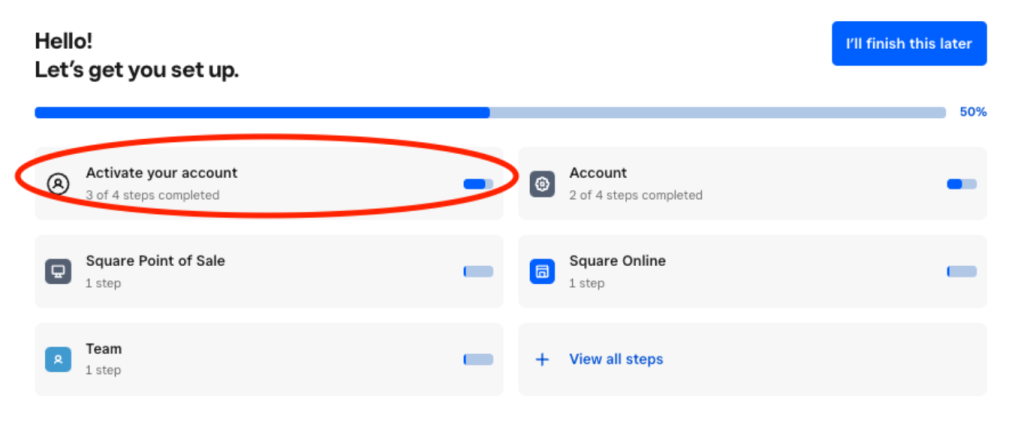
- Complete the first 3 sections of account activation

- Once that is completed, please navigate to your left side panel and click Settings -> Accounts & Settings → Business Information → Locations
Click open the listed location to open up the location details & add your relevant business information, including physical address. Save changes.
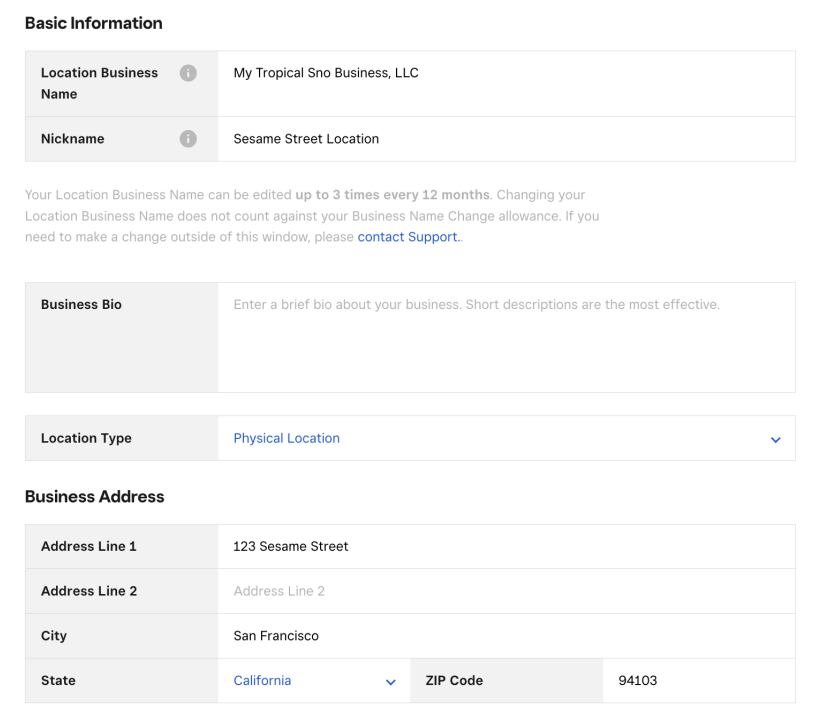
- If you operate any other Locations, click Create Location in the top right. Repeat step 6 until all your Tropical Sno dealership locations are added and configured.
- From the Business Information menu on the left, click Bank Accounts. Link a bank account to each Location. It may take a few business days for verification to be completed before proceeds will begin to deposit.
- From the left side menu, navigate to the Items area of Square Dashboard. This is the area you can create your item catalog. Tropical Sno corporate can send you a template of pre-built items, modifiers, categories, and pricing.
a. More information about creating items here.
b. If you’d like to import the corporate item catalog Excel file straight into your account, instructions on that can be found here. Note: this template may need to be adjusted to be compatible with your account configuration.
- To begin setting up your Square Stand and iPad, you can follow this step-by-step guide. If you have another kind of Square hardware besides the iPad and Stand, find the relevant startup guide here.
- To set up a QR Code webpage for your customers to order from, please refer to the following resources:
a. Getting Started with Square Online
b. Set Up Self-Serve Ordering (guide)
c. Set Up Self-Serve Ordering (video only) - Training Resources
a. Square Marketing Overview
b. Square Loyalty Overview
c. Square Gift Cards Overview
d. Square Shifts, Team, & Payroll Overview
e. Recorded Training Sessions (provided by Tropical Sno corporate)
Advanced Configuration Guides
Square Stand Getting Started Guide
Getting Started with Team Management
Bank Account Troubleshooting
Square Dashboard Guide
Square Point of Sale Setup
Square Support (24/7)
For urgent assistance after hours or on weekends, please contact Square Support using one of the methods below.
- Web: Support Center
- Chat: Support Center
- Phone: (855) 700-6000
While anyone in your organization can call Square to ask questions, only Authorized Representatives are eligible to speak with Square Support about sensitive account details. Please maintain your list of Authorized Representatives in Square Dashboard
If further escalation is needed please raise issues to Tropical Sno Corporate, who has access to a dedicated Square Account Management Team.